
If you’re having trouble launching Forza Horizon 6 because of a persistent Gaming Services error, you’re not alone. The Microsoft Store sometimes refuses to update the required services directly, leaving the game stuck at the startup screen. Here’s a reliable workaround that lets you manually download and install the missing package.
Step-by-Step Fix
- Copy the Gaming Services link
Open the following link in your browser:
https://apps.microsoft.com/detail/9mwpm2cqnlhn?hl=en-US&gl=US - Go to the Microsoft Store package generator
Visithttps://store.rg-adguard.net/ - Paste the link and search
Paste the Gaming Services link into the input field on the site. Make sure the dropdown menu is set to “ProductId”, then click the checkmark button. - Download the correct package
Look for the file named:
Microsoft.GamingServices_36.113.2002.0_neutral_~_8wekyb3d8bbwe.appxbundle
It should be around 189 MB in size. Click on it to download.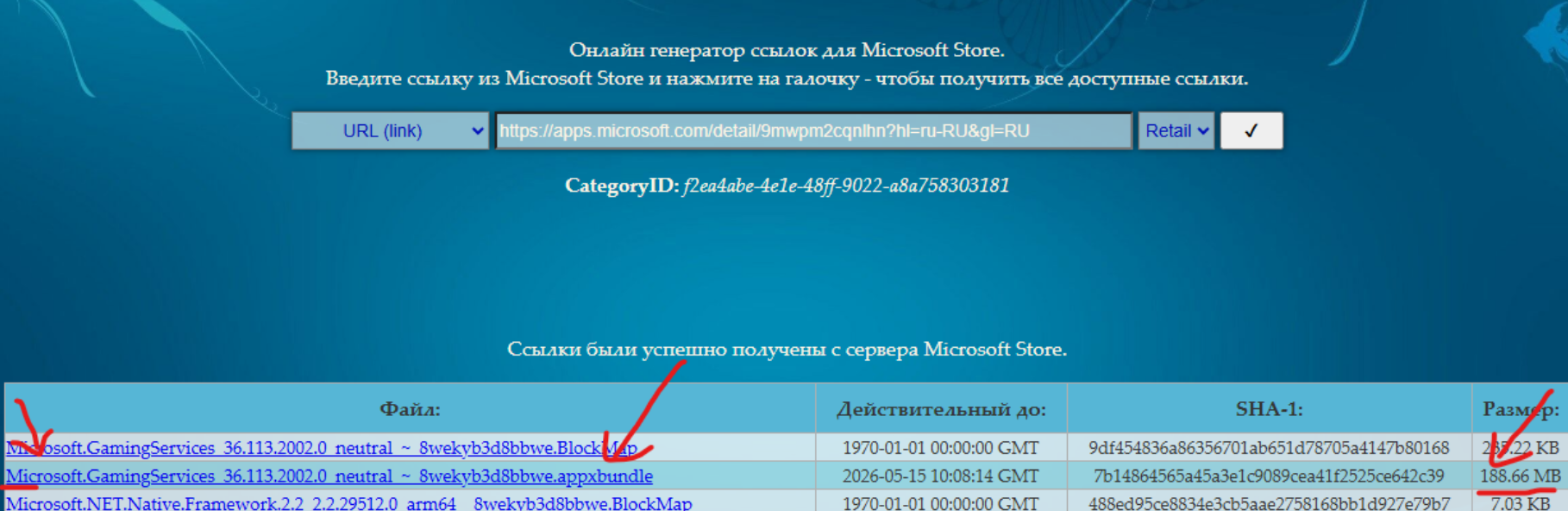
- Install the package
Once downloaded, double-click the.appxbundlefile and follow the installation prompts. After installation, restart your PC and launch Forza Horizon 6 again.
Tips
- Make sure your Windows is up to date before attempting this fix.
- If the installation fails, try enabling Developer Mode in Windows Settings (Update & Security > For Developers).
- This method works when the Microsoft Store itself refuses to update Gaming Services automatically.
Final Thoughts
This manual update saved me when the Microsoft Store just wouldn’t cooperate. It’s a quick, no-nonsense fix that gets the job done without digging into registry edits or reinstalling the entire game. Have you tried this method yet? Let me know in the comments if it worked for you or if you found another way around it!


