
Graveyard Keeper 2 can stutter even when your hardware is more than good enough to run it. This guide walks through the in-game, driver, and monitor settings that remove most of that stutter and explains the one type of hitch you cannot fully get rid of.
In-Game Settings That Actually Matter
Open the game’s options and change three things. Everything else in the menu can stay where it is.
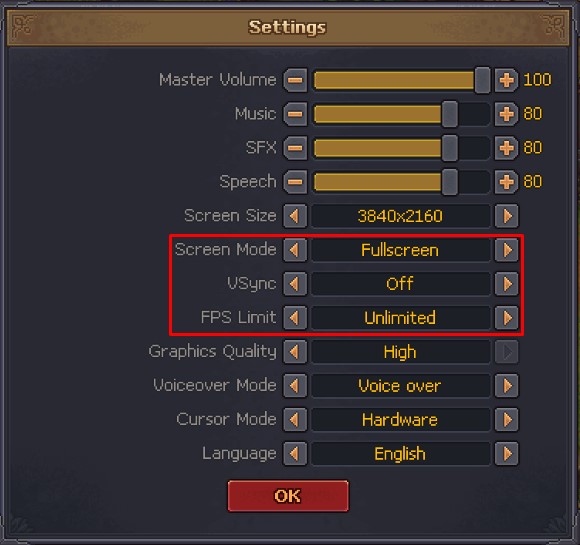
- Fullscreen: Use this mode for now, because it currently gives the best performance. If a Borderless Window option is added later, test it, since borderless can sometimes run better.
- V-Sync: Turn this OFF. You will enable V-Sync at the driver level instead, and the driver setting overrides the in-game one. Leaving both on makes them fight each other. As a general rule, never use in-game V-Sync in any game. Set it in your GPU control panel, either globally or per game.
- FPS Limit: Set this to UNLIMITED. You will cap the frame rate somewhere else, so your GPU does not cook itself trying to push 9000 frames onto a 60 Hz screen. Leaving it unlimited here stops it from conflicting with the cap you set later.
Monitor and Driver Setup
Before touching any driver software, confirm two things about your display.
- Find your monitor’s refresh rate in hertz (Hz), and check what your display settings are actually using. Set it to the highest value your panel supports.
- Find out whether your screen supports a Variable Refresh Rate (VRR) technology. NVIDIA’s version is called G-Sync Compatible, AMD’s is FreeSync, and there is also an HDMI 2.1 VRR standard. If your screen has no VRR support at all, just turn on V-Sync in your GPU driver and skip the frame-cap advice below. It will not be as smooth as VRR with a capped frame rate, but it is your best available option.
Then open your GPU driver software and copy the settings below. The only value you should change is the Max Frame Rate.
Editor Warning: In many games that do not support it natively, including Graveyard Keeper 2, the NVIDIA Reflex / Low Latency setting should be left off. I ran it on globally for a long time, but it can interfere with frame pacing and cause occasional small stutters. Turning it off removes them.
One more driver setting is easy to overlook and worth checking right now. If your games or your mouse cursor feel sluggish, the display scaling may be set to run on your monitor instead of your GPU. It must be set to GPU scaling. This holds true even when games run at your monitor’s native resolution, and leaving it on the display side adds noticeable input latency. Switch it to the GPU and mouse movement will feel faster immediately.
Recommended Frame Caps for VRR Displays
When VRR is active, cap your frame rate a few frames below your refresh rate. This keeps the frame rate inside the VRR window.
| Monitor Refresh Rate | Recommended FPS Cap |
|---|---|
| 60 Hz | 59 FPS |
| 120 Hz | 117 FPS |
| 144 Hz | 141 FPS |
| 165 Hz | 162 FPS |
| 240 Hz | 236 FPS |
| 360 Hz | 350 FPS |
These are conservative values. If a cap does not feel right, subtract one more frame. On my own 120 Hz 4K LG TV I use 116 FPS instead of 117. Also note that on some TVs and monitors, VRR is a separate setting that ships turned off. Check your display’s own menu.
Capping Frames With RivaTuner for Tighter Frame Times
If you have never heard of RivaTuner Statistics Server, the driver-level cap above may be smooth enough for you. If you want even tighter frame times and less micro-stutter, cap your FPS with RivaTuner instead.
When you use RivaTuner, do not also set a Max Frame Rate in your GPU control panel. The logic is the same as everywhere else in this guide: never let two tools enforce the same limit. When the driver, the game, and third-party tools all apply their own V-Sync or frame cap values, they can interfere with each other even if the values match.
RivaTuner produces more consistent frame times than the AMD or NVIDIA driver cap because it cuts frames at the CPU level, one stage earlier than the GPU driver can. For strict frame limiting across all games, it is the strongest option.
Editor Warning: RivaTuner’s interface looks intimidating and is packed with options you do not need. Do not explore it. Set the frame limit, leave the program running in the background, and let it start automatically with Windows. Opening other menus only invites mistakes.
Stutters You Cannot Fully Fix
Some stutter in Graveyard Keeper 2 is unavoidable right now. It happens when you cross into a new area of the map, such as entering the town or passing the two soldiers at the outpost. Every time the game loads a new chunk of the world, the Unity engine tries to load it all at once, and this causes a hitch that no PC can currently prevent.
Installing the game on your fastest SSD or NVMe drive reduces these load stutters but does not eliminate them. This is not a hardware problem, not a PC software problem, and not a sign that your settings above are wrong. If your stutters happen at the same predictable spots, typically when you cross into new map zones, the settings are working correctly. They should give you a smooth experience everywhere else.
I looked into whether Resizable BAR could help with this Unity loading problem, but the engine does not appear to use it. I will keep testing and update this guide if I find a real fix.
Conclusion
Get the in-game settings, driver settings, and frame cap right, and the only remaining stutter will be the Unity world-loading hitch at map borders. That part is on the engine, not on you.


